
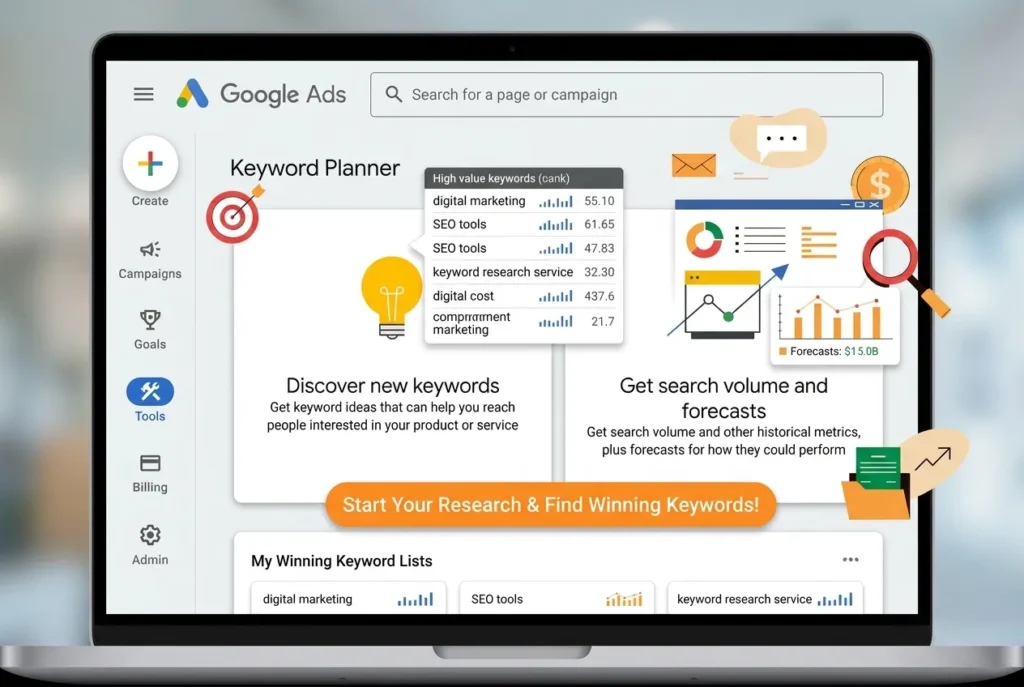
Google Ads Keyword Planner is the free tool that most marketers use to decide which words and phrases to target, whether they are building a paid search campaign or researching content for SEO. It lives inside Google Ads, it is free to use, and it pulls data straight from Google’s own search systems, which makes it one of the most trustworthy keyword sources available.
This guide walks through everything: how to access the tool, how to read every column of data it shows, how to turn keyword ideas into real ad groups and campaigns, and the mistakes that waste the most budget. By the end, you will be able to open Keyword Planner and build a keyword list with confidence instead of guessing.
What Is Google Ads Keyword Planner and How Do You Use It?
If you only have thirty seconds, here is the short version.
- Google Ads Keyword Planner is a free keyword research tool inside Google Ads. You need a Google Ads account to open it, but you do not need to spend money on ads to use it.
- It has two main modes: Discover new keywords (to find fresh keyword ideas from a seed term or a website) and Get search volume and forecasts (to check data on keywords you already have).
- It shows average monthly searches, competition level, and suggested bid ranges for each keyword.
- It is built for PPC campaign planning, but it is also widely used for free SEO keyword research because of its accurate volume data.
What Is Google Ads Keyword Planner?
Google Ads Keyword Planner is a free planning tool built into the Google Ads platform. Advertisers use it to find new keyword ideas, estimate how often people search for a term, and see roughly how much it might cost to bid on that term in a paid search campaign.
It replaced the older standalone product many long-time marketers still call the “Google AdWords Keyword Planner,” a name that has stuck around since Google Ads was rebranded from AdWords in 2018. If you search for “Google AdWords Keyword Planner” today, you will land on the same tool described in this guide.
The official entry point is Google Ads, and Google documents the current features in its own Keyword Planner help center article.
Who actually uses Keyword Planner?
- PPC advertisers building Search campaigns who need to pick keywords and estimate budgets.
- SEO teams who want free, Google-sourced search volume to prioritise blog topics and landing pages, often alongside a content calendar process.
- Content marketers validating whether an idea has real search demand before writing, a step covered in Moz’s beginner’s guide to SEO.
- Small business owners trying to understand what their customers actually type into Google, a group the SBA’s digital marketing resources also speak to directly.
Why Keyword Planner Data Is Valuable
Keyword Planner has one advantage no third-party tool can fully match: the data comes directly from Google. Third-party SEO tools, however good, estimate search volume using crawled data, clickstream panels and modelling. Keyword Planner uses Google’s own query logs.
That said, the tool has trade-offs worth knowing upfront:
- Volume ranges, not exact numbers, unless your account has active ad spend.
- No keyword difficulty score, because that metric is an SEO concept, not an advertising one.
- Data is grouped, which can hide the true gap between a term that gets 1,100 searches a month and one that gets 9,800, since both might show as “1K–10K.”
Despite these limits, it remains a cornerstone tool. A 2024 industry survey on marketing tool usage, summarised in Search Engine Journal’s coverage of keyword research trends, consistently lists Google’s own planner among the most-used free research tools by both SEO and PPC professionals. The Content Marketing Institute and WordStream’s PPC blog both reference it as a baseline tool in their own annual research round-ups.
How to Access Google Ads Keyword Planner (Step by Step)
Follow these steps to get into the tool for the first time.
Step 1: Create or sign in to a Google Ads account. Go to ads.google.com and sign in with any Google account. If you do not have a Google Ads account yet, Google will walk you through a short setup. You can skip the “create your first campaign” prompts; you do not need a live campaign to use Keyword Planner.
Step 2: Open the Tools menu. Once inside your account, click the wrench icon or “Tools and Settings” in the top navigation bar.
Step 3: Select Keyword Planner. Under the “Planning” column, click “Keyword Planner.”
Step 4: Choose a mode. You will see two options: “Discover new keywords” and “Get search volume and forecasts.” Pick whichever matches your task, explained in detail in the next two sections.
If you get stuck, Google Skillshop’s free Google Ads certification course covers the interface in more depth, and it is free to take. The Google Ads Help Center is also searchable directly if you hit a setup issue not covered here, and Google’s Google Ads system status page is worth checking if the tool is behaving unexpectedly.
Discover New Keywords: Full Walkthrough
This mode is where most keyword research begins. It generates fresh keyword ideas based on a starting point you provide.
Method 1: Start with keywords
Enter up to ten seed terms related to your product, service or content topic. For example, a bakery might enter “custom birthday cakes,” “cupcakes near me” and “wedding cake bakery.” Google returns a list of related terms along with their data.
Tip: Enter more than one seed and group them by intent. Mixing broad and specific seeds produces a wider, more useful idea list.
Method 2: Start with a website
Paste a URL, either your own site or a competitor’s, and Google will scan the page and suggest keywords it believes are relevant to that content. This is one of the fastest ways to reverse-engineer what a competitor is likely targeting.
Method 3: Combine both
You can enter seed keywords and a URL together for a more refined starting list. This method tends to produce the most relevant first batch of ideas, because Google uses both signals at once.
Filtering the results
Once you have a list, use the filters above the table to narrow it down:
- Location: Set this to the country, region or city you are targeting. Skipping this step is one of the most common beginner mistakes, since the default location can skew volume numbers significantly.
- Language: Match the language your audience actually searches in.
- Date range: Adjust to see seasonal trends over the past 12 months.
- Keyword text filters: Use “contains” or “does not contain” to clean out irrelevant terms quickly.
For a deeper look at filter strategy, Backlinko’s detailed guide to Google Keyword Planner walks through several advanced filtering combinations. Neil Patel’s keyword research guide and SEMrush’s keyword research overview both offer a second opinion on filtering strategy worth comparing against Google’s own documentation.
Get Search Volume and Forecasts: Full Walkthrough
This second mode works differently. Instead of discovering new ideas, it analyses a list of keywords you already have, which is useful when you already know roughly what you want to target and need the data to back a budget decision.
Step 1: Paste or upload your keyword list. You can type keywords manually, paste a list, or upload a CSV file.
Step 2: Review historical metrics. Google shows average monthly searches, competition, and typical bid ranges for each term, pulled from search history.
Step 3: Check the forecast tab. This estimates clicks, impressions, cost and conversions based on a bid and budget you set, assuming the campaign ran with your chosen settings. Treat this as a directional estimate, not a guarantee.
Step 4: Export or save. You can download the list as a CSV or add it directly to a plan inside Google Ads.
This mode is especially useful before committing real budget. Before a client meeting or before you commit spend, running the planned keyword list through the forecast tool can prevent an expensive surprise later. HubSpot’s guide to keyword research for PPC covers how to interpret forecast numbers alongside other planning steps, and Google’s own Performance Planner is a useful companion tool once a campaign is already live, since it forecasts at the account level rather than the keyword level.
How to Read Every Column in the Results Table
The results table can feel overwhelming the first time you see it. Here is what each column actually means.
| Column | What It Means | How to Use It |
|---|---|---|
| Keyword | The exact search term or phrase | Scan for relevance to your offer |
| Avg. monthly searches | A range showing how often the term is searched | Higher range means more potential reach |
| Three-month change | Short-term trend in search volume | Spot seasonal spikes or emerging trends |
| YoY change | Year-over-year volume trend | Confirms whether demand is growing or shrinking long term |
| Competition | Low, medium or high, based on advertiser demand | Higher competition usually means higher cost per click |
| Competition (indexed) | A 0 to 1 numeric version of the competition field | Useful for sorting a long list quickly |
| Top of page bid (low range) | Lower estimate of what advertisers pay for page placement | Budget planning baseline |
| Top of page bid (high range) | Higher estimate of what advertisers pay | Budget planning ceiling |
| Ad impression share | How often your existing ads showed for this term (if you have an active account) | Reveals gaps in current coverage |
Competition level in Keyword Planner reflects advertiser bidding competition, not SEO ranking difficulty. A keyword can show “low competition” in Keyword Planner and still be very hard to rank for organically, because those are two different kinds of competition entirely. Many beginners confuse the two, so it is worth repeating: Keyword Planner competition is about paid auctions, not organic search results pages. Google explains the mechanics of this auction in its own how the ad auction works documentation.
Understanding Match Types and How They Affect Your Keyword List
Once you move keyword ideas into an actual campaign, match type decides how closely a searcher’s query needs to match your keyword before your ad is eligible to show.
| Match Type | Syntax Example | Behaviour |
|---|---|---|
| Broad match | running shoes | Matches a wide range of related searches, including synonyms and related concepts |
| Phrase match | “running shoes” | Matches searches that include the meaning of the phrase, in roughly that order |
| Exact match | [running shoes] | Matches searches with the same meaning as the exact term, with little variation |
Google’s own Keyword matching options documentation explains current behaviour for each type in detail, since Google periodically adjusts how loosely broad match is interpreted. For a critical, practitioner’s take on how far broad match has drifted over time, PPC blog Optmyzr’s broad match analysis and Search Engine Land’s PPC coverage are both worth a read before switching an account over.
Practical advice: Start new campaigns with phrase match and exact match for tighter control, especially if your budget is limited. Broad match can work well once you have strong negative keyword lists and conversion tracking in place, but it can also burn budget quickly for beginners.
Building Ad Groups From Your Keyword Research
Raw keyword lists are only useful once they are organised. Here is a simple method for turning a Keyword Planner export into a working campaign structure.
Step 1: Group by intent, not just topic. Separate keywords into buckets like “informational,” “comparison” and “ready to buy.” A term like “what is a CRM” belongs in a different group than “best CRM software” or “buy CRM software.”
Step 2: Keep ad groups tightly themed. Each ad group should contain a small cluster of closely related keywords, ideally under 15 to 20, so your ad copy can speak directly to all of them.
Step 3: Write ad copy that matches the group’s intent. A “buy” intent group should lead with price, offer or urgency. An “informational” group should lead with education and trust-building.
Step 4: Add negative keywords early. Before launch, exclude obviously irrelevant terms, such as “free” or “jobs,” if they do not match your offer. This single step prevents a large share of wasted spend in the first weeks of a campaign. Google’s negative keywords guide and negative keyword list management documentation both cover setup in more detail.
Step 5: Set location and device targeting to match your audience. This connects back to the filters you applied during research, so your real campaign settings mirror what you tested in Keyword Planner.
Google’s Search campaign structure best practices page is a good reference while building out this structure for the first time, and the Single Keyword Ad Group (SKAG) debate covered on PPC Hero is useful reading if you want a more advanced, highly granular structure.
Using Keyword Planner for SEO Instead of PPC
Although the tool was built for advertisers, a large share of SEO professionals use it purely for free, accurate volume data. Here is how to adapt the workflow for content and organic search.
Use “Discover new keywords” to map a topic cluster. Enter your main topic as a seed, then group the results into a pillar page and several supporting articles.
Ignore “Competition” and “Top of page bid.” These relate to paid advertising, not organic ranking difficulty. For organic competition, pair Keyword Planner’s volume data with a dedicated SEO tool, or simply search the term yourself and study who currently ranks.
Pay attention to “Three-month change” and “YoY change.” These two columns are excellent for spotting rising topics before competitors notice them, since they show real momentum rather than a static monthly number.
Cross-check volume ranges against actual click data. Google Search Console will show you real impressions and clicks once a page is live, which lets you compare Keyword Planner’s prediction against reality.
Ahrefs has published a well-known guide to using Keyword Planner for SEO that covers several workaround techniques for getting more precise numbers out of the tool without running ads. Yoast’s own keyword research guide and Google’s SEO starter guide are both good companions once you move from research into actually writing and optimising the page.
Google Ads Keyword Planner vs Other Keyword Research Tools
No single tool covers every need. Here is how Keyword Planner compares to other popular options.
| Tool | Best For | Data Source | Cost |
|---|---|---|---|
| Google Ads Keyword Planner | PPC planning, baseline SEO volume | Google’s own search data | Free |
| Google Trends | Relative interest over time, seasonal spikes | Google search interest | Free |
| Ahrefs Keywords Explorer | Keyword difficulty, SERP analysis | Clickstream + crawl data | Paid |
| Semrush Keyword Magic Tool | Large keyword databases, competitor research | Clickstream + crawl data | Paid |
| Ubersuggest | Budget-friendly keyword ideas | Mixed sources | Free tier + paid |
| AnswerThePublic | Question-based and long-tail ideas | Autocomplete data | Free tier + paid |
Most experienced marketers use Keyword Planner as a starting point for accurate volume, then layer in a paid tool for difficulty scoring and competitor gap analysis. Google Trends pairs especially well with Keyword Planner, since Trends shows direction and seasonality while Keyword Planner shows scale. Moz’s Keyword Explorer and SpyFu’s keyword research tool round out the comparison if you want to test more paid options before subscribing.
Common Mistakes to Avoid
These are the errors that waste the most time and budget.
Ignoring location settings. Leaving the default location in place can badly distort volume numbers, especially for local businesses.
Treating “Competition” as ranking difficulty. As covered above, this column is about ad auctions, not organic search results.
Chasing only high-volume head terms. Broad, high-volume keywords are usually the most expensive and the most competitive. Long-tail variations often convert better and cost less.
Skipping negative keywords. Many new accounts bleed budget in the first few weeks simply because no exclusions were set up.
Not updating lists seasonally. Search behaviour shifts. A list built in January can miss major opportunities by the following autumn if it is never revisited. Think with Google’s seasonal trends tool is a useful cross-check when planning around holidays or industry-specific peaks.
Relying on volume alone. A keyword with huge volume but no buying intent may generate traffic without generating revenue. Always weigh volume against intent.
Forgetting to check the forecast tool before setting a budget. Skipping this step is one of the fastest ways to set an unrealistic daily budget on day one.
Advanced Tips for 2026
Pair Keyword Planner with Search Console query data. Your own site’s actual search queries, visible in Google Search Console, often reveal keyword opportunities Keyword Planner misses entirely, since they come from real impressions on your pages.
Watch the three-month change column closely. With AI-driven search features changing how people phrase queries, short-term trend columns are becoming more valuable than static annual averages.
Use “start with a website” on your own best-performing page. This often surfaces keyword variations your page could be optimised for but currently is not targeting.
Layer in first-party data. If you run email campaigns or have CRM data, compare the language your actual customers use against Keyword Planner’s suggestions. Real customer language often differs from the generic terms a planning tool suggests.
Review Google’s product updates periodically. Google adjusts Keyword Planner’s interface and data presentation from time to time. The Google Ads blog is the most reliable place to catch feature changes as they roll out, and the Google Ads Liaison account on X often shares updates before they appear in formal documentation.
Consider AI-assisted keyword clustering for large lists. Once a Keyword Planner export runs into the hundreds of rows, tools like Claude can help group terms by intent and theme far faster than doing it by hand in a spreadsheet, which frees up time for strategy instead of manual sorting.
A Simple Keyword Research Workflow You Can Repeat
Use this repeatable five-step process for every new campaign or content project.
Step 1: Brainstorm 5 to 10 seed terms based on your product, service or article topic.
Step 2: Run “Discover new keywords” using those seeds, with location and language filters set correctly.
Step 3: Export the full list and sort by average monthly searches and three-month change.
Step 4: Group keywords by intent into separate buckets: informational, comparison, transactional.
Step 5: Validate with a second source, such as Google Trends for direction or an SEO tool for organic difficulty, before finalising your list.
Repeating this process every quarter, rather than only once at launch, keeps a campaign or content calendar aligned with how search behaviour actually shifts over time.
Free Calculators and Tools to Pair With Your Campaign
Keyword research is only the first step. On Every Tools, we build free calculators that help with the planning that comes next.
- If you are estimating staffing or project costs tied to a new campaign, try our hourly to salary calculator.
- Browse more free tools on the Every Tools homepage.
- Learn more about the site on our About page.
Frequently Asked Questions
What is Google Ads Keyword Planner?
Google Ads Keyword Planner is a free keyword research tool inside Google Ads. It shows keyword ideas, average monthly search volume ranges, competition level and suggested bid ranges, and it is used for both PPC campaign planning and SEO content research.
Is Google Ads Keyword Planner free to use?
Yes. Keyword Planner itself is free. You need a Google Ads account to access it, but you do not have to run a paid campaign or spend any money to use the tool.
How do I access Google Ads Keyword Planner?
Sign in to Google Ads at ads.google.com, click Tools and Settings, then choose Keyword Planner under the Planning column. From there select either Discover new keywords or Get search volume and forecasts.
Why does Keyword Planner show a search volume range instead of an exact number?
Google shows a volume range, such as 1K to 10K, instead of an exact figure for accounts that are not actively spending on ads. Accounts with active ad spend typically see narrower, more precise ranges.
Can I use Google Ads Keyword Planner for SEO instead of PPC?
Yes. Many SEO professionals use Keyword Planner purely for its free search volume and keyword idea data, even though the tool was built for advertisers. It will not show ranking difficulty, so it is often paired with an SEO-focused tool for that metric.
What is the difference between Google Ads Keyword Planner and Google AdWords Keyword Planner?
They are the same tool. Google Ads was rebranded from Google AdWords in 2018, so the planner’s name changed along with it, but many people still search using the older “AdWords” name out of habit.
Does Keyword Planner show keyword difficulty for SEO?
No. The “Competition” column reflects advertiser bidding competition, not how hard a term is to rank for organically. For organic ranking difficulty, use a dedicated SEO tool or study the current search results page directly.
How accurate are the search volume numbers in Keyword Planner?
The data comes directly from Google’s own search systems, so it is generally considered more reliable than third-party estimates. However, it is shown as a range rather than an exact number unless your account has active ad spend, which limits precision.
Can I use Keyword Planner without creating a Google Ads campaign?
Yes. You need a Google Ads account to access the tool, but you do not need to launch or fund an active campaign to use Keyword Planner’s research features.
Google Ads Keyword Planner remains one of the most reliable free research tools available in 2026, precisely because the data comes straight from Google. Whether you are planning a paid search campaign or researching content topics for SEO, the workflow is the same: start with clear seed terms, filter carefully by location and language, read the data honestly, and validate what you find with a second source before committing budget or writing time.
Treat Keyword Planner as the foundation of your research, not the entire process. Combine it with trend data, competitor analysis and your own site’s real performance numbers, and you will make far better keyword decisions than relying on any single tool alone.
Ready to put your keyword research into a plan? Explore more free tools on Every Tools to support the next stage of your project.