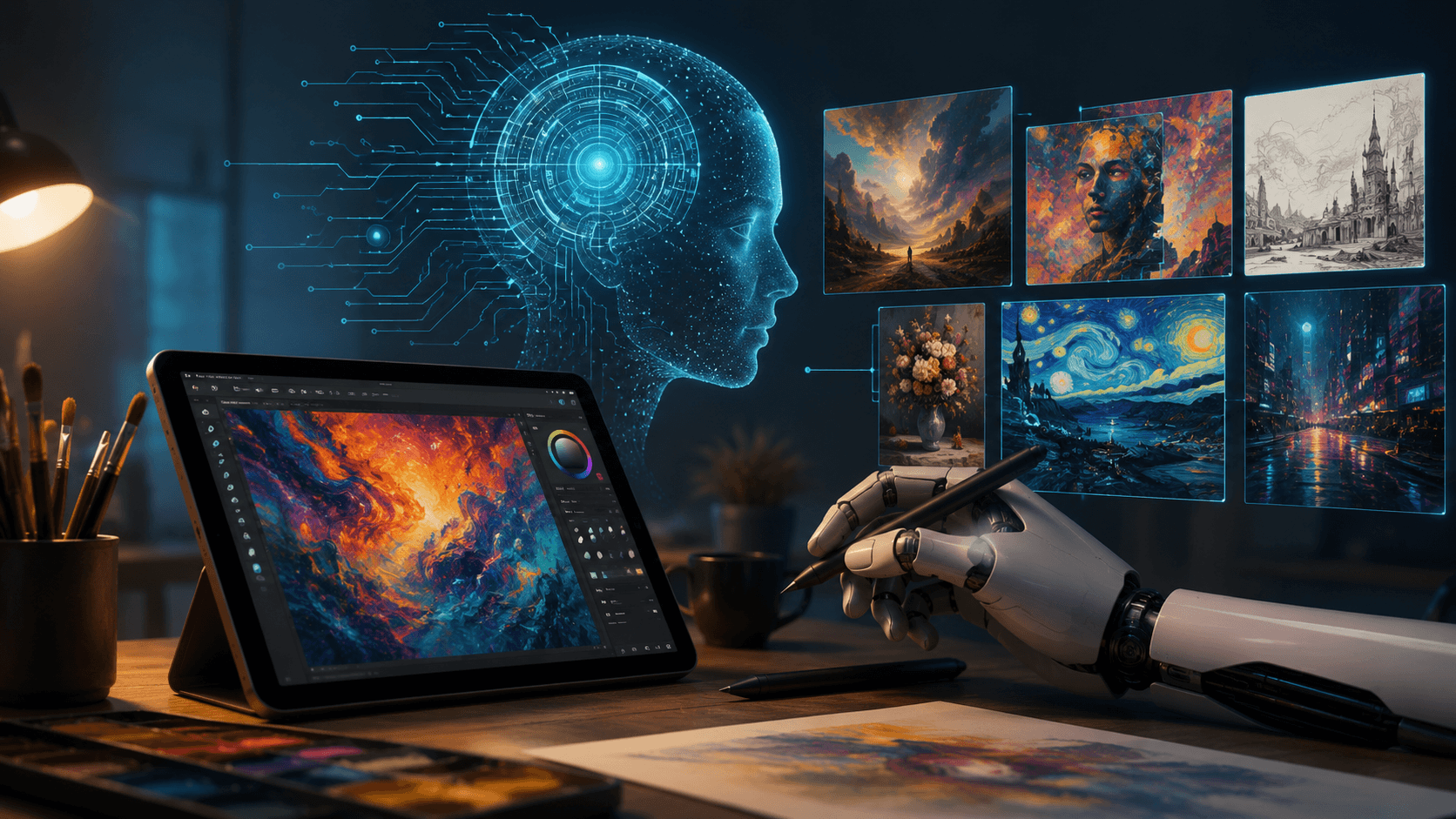
To create AI art, choose an AI art generator, write a clear text prompt that describes the subject, setting, style, lighting, and mood, generate several versions, refine one detail at a time, then edit and upscale the best result. Before commercial use, check the tool licence and your local copyright rules.
Key takeaways
- Specific prompts with style, lighting, and composition give better images.
- Generate several versions and refine one change at a time.
- Hands, small details, and text inside images may need editing.
- Check licence terms and copyright rules before using AI images commercially.
In this guide
- What Is an AI Art Generator?
- Types of AI Art Tools
- How to Create AI Art in 6 Steps
- A Simple Prompt Formula
- Tips for Better Results
- Common Problems and How to Handle Them
- Copyright, Ethics, and Commercial Use
- How Businesses Use AI Art
- Mistakes to Avoid
- Frequently Asked Questions
Last updated: October 2026
AI art generators turn a written description into an image in seconds. You do not need drawing skills, but you do need to know how to describe what you want, how to improve the results, and how to use the images responsibly. This guide walks you through the process step by step.
What Is an AI Art Generator?
An AI art generator is software that creates images from text prompts. Most use diffusion models, which learn patterns from huge collections of images and then build a new picture from noise, guided by your description. Some tools also let you edit existing images, extend backgrounds, or change a style.
Types of AI Art Tools
| Type | Examples | Good for |
|---|---|---|
| General image generators | Midjourney, DALL·E, Stable Diffusion-based apps | Illustrations, concept art, creative exploration |
| Design-focused tools | Adobe Firefly, Canva | Marketing graphics, social posts, quick edits |
| Open-source and local tools | Stable Diffusion interfaces | Full control and customisation for advanced users |
Features, prices, and licences change often, so check the current terms of whichever tool you choose.
How to Create AI Art in 6 Steps
- Decide your goal. A blog header, a character, a poster, or a mood board? Your purpose affects style and size.
- Choose a tool that matches your skill, budget, and licensing needs.
- Write a clear prompt. Use the formula below.
- Generate several versions. Rarely is the first image the best.
- Refine. Change one thing at a time, such as the lighting, angle, or style words.
- Edit and export. Upscale, crop, remove flaws, and save in the right format.
A Simple Prompt Formula
A good prompt is specific. Try combining these parts:
Subject + action + setting + style or medium + lighting + composition + mood or colour
| Weak prompt | Stronger prompt |
|---|---|
| A cat | A ginger cat sleeping on a sunlit windowsill, watercolour illustration, soft morning light, close-up, warm pastel colours |
| A city | A futuristic city skyline at dusk, digital art, neon reflections on wet streets, wide-angle view, blue and orange tones |
| A product photo | A white ceramic mug on a wooden table, minimalist product photography, natural window light, shallow depth of field |
Tips for Better Results
- Be specific about style. Words such as “oil painting”, “flat vector”, “3D render”, or “film photograph” shape the look.
- Describe lighting and camera angle. “Golden hour”, “top-down view”, and “macro shot” help.
- Use reference images if the tool supports them, to guide composition or colour.
- Specify what to avoid where the tool has a negative prompt feature.
- Keep a prompt log of what worked so you can repeat it.
- Edit afterwards. Light retouching in an editor can fix small flaws.
Common Problems and How to Handle Them
- Hands and fine details: these are improving but can still look wrong. Regenerate or use an inpainting or edit feature on that area.
- Text inside images: often misspelled. Add text later in a design tool.
- Inconsistent characters: use reference images or character features in the tool, and keep the descriptive words the same.
- Generic results: add distinctive details and a clearer art direction.
Copyright, Ethics, and Commercial Use
Before using AI images in business, check these points:
- Licence terms: read what the tool allows for commercial use and what it says about ownership.
- Copyright status: in the United States, the US Copyright Office has said that material created purely by AI without human authorship is not protected by copyright, while human-made contributions can be. Rules differ by country and are still developing.
- Do not copy living artists or protected characters. Avoid prompts that imitate a specific artist’s work or use trademarked characters and brands.
- Real people: do not create misleading images of real individuals.
- Disclosure: be honest where it matters, such as news, education, or product images.
How Businesses Use AI Art
- Social media graphics and ad concepts, as part of your wider digital marketing mix
- Blog and website images
- Mood boards and early product concepts
- Presentation visuals and storyboards
- Product page backgrounds, as long as the product itself is shown accurately. See our tips on increasing ecommerce sales for what shoppers expect.
Mistakes to Avoid
- Using the first result without checking details. Look for odd shapes, hands, and text errors.
- Writing vague prompts. More precise wording gives better images.
- Ignoring licences. Terms can limit commercial use.
- Using misleading images. Do not show products or results that do not exist.
- Uploading private or confidential images. Check how the tool stores and uses your data.
Frequently Asked Questions
Pick an AI image generator, write a detailed prompt, generate several options, refine the prompt, and edit the best image.
A good prompt names the subject and setting, and adds style, lighting, composition, and colour or mood.
It depends on the tool licence and your country laws. Read the terms of service and check copyright guidance before selling.
In the US, purely AI-generated material without human authorship is generally not protected, while human creative contributions can be. Rules differ by country.
Models learn visual patterns rather than anatomy or spelling, so details can come out wrong. Regenerate, edit the area, or add text in a design tool.
Some tools have free tiers with limits, while paid plans offer more images, higher quality, and clearer commercial terms.
This article is general information and not legal advice. Tool features, prices, and licences change, so check current terms.