
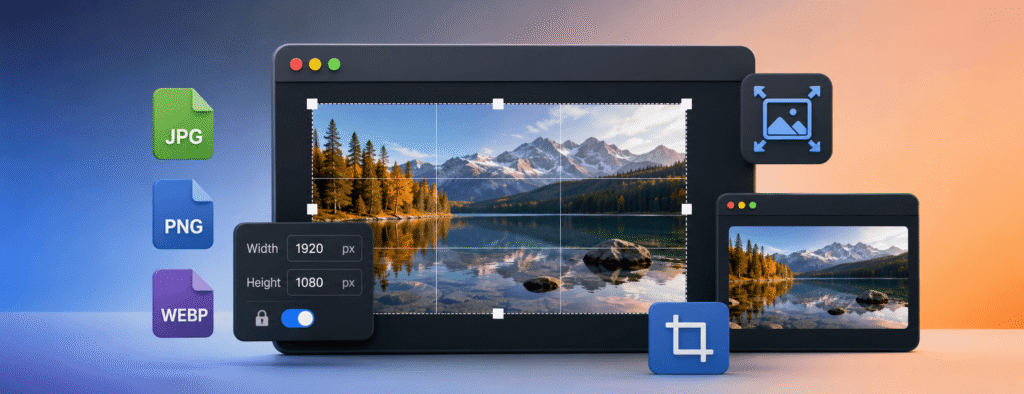
The Ultimate Guide to Image Resizing
In the digital age, images are at the core of online communication. Whether you are a professional photographer, a social media influencer, or a small business owner, the way you present your visuals plays a major role in audience engagement. However, high-quality images often come with large file sizes that can slow down your website, reduce page performance, and exceed email attachment limits. This is where image resizing becomes an essential skill.
In this comprehensive guide, we will explore everything you need to know about image resizing, why it is important for SEO, and how the Everytoolfy Image Resizer can help you achieve perfectly optimized images with ease.
1. What is Image Resizing?
Many people confuse image resizing with cropping or compression. While these processes are closely related, each serves a different purpose in image optimization and SEO.
- Image Resizing: Resizing changes the physical dimensions of an image by adjusting its width and height. This process directly affects the total pixel count, making the image suitable for different screen sizes and layouts.
- Image Compression: Compression reduces the file size of an image—from MBs to KBs—by removing unnecessary data. In most cases, it maintains the same dimensions while improving website loading speed and performance.
- Image Cropping: Cropping removes unwanted outer areas of an image to improve focus, composition, or aspect ratio. It helps highlight the most important part of the visual.
When you resize an image using our tool, the pixel grid is intelligently adjusted to match your required dimensions—whether for a website banner, social media post, profile picture, or blog thumbnail. This ensures your images remain sharp, responsive, and optimized for both user experience and SEO performance.
2. The Science of Pixels and Resolution
To fully understand image resizing, it is important to first understand pixels. A digital image is composed of millions of tiny squares known as pixels, which work together to create a clear and detailed visual.
What is PPI?
PPI (Pixels Per Inch) determines the pixel density of an image. For web use, 72 PPI is considered the standard. Increasing the PPI beyond 72 will not improve image quality on websites; instead, it only increases the file size, which can slow down your website’s loading speed and negatively impact SEO performance.
Up-scaling vs. Down-scaling
Downscaling: Reducing a large image to a smaller size while preserving clarity and image quality. This process is safe and ideal for improving website speed and overall SEO performance.
Upscaling: Enlarging a small image to a bigger size. This often causes pixelation or a blurry appearance because the software must estimate and create additional pixels.
Pro Tip: Always start with the highest-resolution version of your image to achieve the best resizing results and maintain visual quality.
3. Why Image Resizing is Critical for SEO and UX
Google prioritizes fast-loading websites because page speed directly impacts user experience and SEO rankings. If your website takes longer than 3 seconds to load, you could lose more than 50% of your visitors before they even view your content. One of the biggest causes of slow website performance is large, unoptimized images, which can significantly increase page load time and hurt both user engagement and search engine visibility.
Core Web Vitals
Google uses Core Web Vitals as a ranking factor, and one of the most important metrics is Largest Contentful Paint (LCP). If your main image is 5MB, it can slow down page loading speed, negatively impact your LCP score, and reduce your website’s search engine rankings. By resizing and optimizing images to the exact dimensions required, you can improve loading performance, enhance user experience, and boost your SEO rankings.
User Experience (UX)
Imagine a user visiting your website on a mobile device with a limited data plan. If your pages contain oversized images, they can take longer to load and consume unnecessary bandwidth, leading to a poor user experience. Proper image resizing improves mobile responsiveness, reduces loading times, and ensures your website remains fast, accessible, and user-friendly for every visitor.
4. Understanding Aspect Ratios for Social Media
An aspect ratio defines the proportional relationship between an image’s width and height. Choosing the correct aspect ratio is essential because the wrong ratio can cause images to appear stretched, cropped, or distorted across different platforms.
| Platform | Recommended Aspect Ratio | Best Use Case |
|---|---|---|
| Instagram Post | 1:1 or 4:5 | Square and portrait photos |
| YouTube Thumbnail | 16:9 | Widescreen video thumbnails |
| Pinterest Pin | 2:3 | Tall, vertical images |
| Facebook Cover | 16:9 | Cover photos and header banners |
Using the right aspect ratio improves visual quality, enhances user experience, and ensures your content looks professional on every social media platform.
5. File Formats: Which One Should You Choose?
When resizing an image, the file format you choose is just as important as the dimensions.
- JPEG (.jpg): Ideal for photographs. It offers strong compression, but it is lossy, meaning some image quality is reduced each time it is saved.
- PNG (.png): Best for logos, icons, and graphics that require a transparent background. It is lossless, so it preserves full image quality, but the file sizes are usually larger.
- WebP: A modern image format that delivers superior compression and quality compared to both JPEG and PNG. It is widely supported by modern browsers and is strongly recommended by Google for better website performance and SEO.
6. Common Mistakes to Avoid When Resizing
To achieve the best results from our tool, avoid these common mistakes:
Ignoring the “Lock Aspect Ratio” option:
If you change the width without adjusting the height proportionally, your image may appear stretched or squashed. Always keep the aspect ratio locked unless you intentionally want to distort the image.
Over-resizing images:
Avoid reducing an image to extremely small dimensions (like 100×100 pixels) if you may need a larger version later for headers or banners. Always keep a backup of the original high-quality file.
Neglecting proper file names:
After resizing, rename your image files with clear and descriptive names, such as blue-summer-dress-resized.jpg instead of IMG_1234.jpg. This improves organization and enhances SEO performance in Google Image Search.
7. How to Use Everytoolfy Image Resizer (Step-by-Step)
Our tool is designed to be the fastest and easiest image resizer on the web. Here’s how to use it:
Upload: Click the “Upload” button or simply drag and drop your image into the upload area.
Set Dimensions: Enter your desired width and height in pixels. If you’re unsure, the tool will automatically suggest the most common and optimized sizes for you.
Select Format: Choose your preferred output format, such as JPG, PNG, or WebP, depending on your needs.
Resize & Download: Click the “Resize” button to process your image instantly. Once completed, hit “Download” to save your optimized image to your device.
Our tool uses a sophisticated algorithm based on the DIME method to deliver accurate, reliable, and precise financial calculations. Also explore our Image Crop and Image Compressor for more useful online tools.