
The Ultimate Guide to Converting PDF to Word Fast, Free, and Accurate Formatting
In today’s digital workflow, the Portable Document Format (PDF) has become the global standard for sharing documents. It preserves formatting, fonts, images, and layouts perfectly across all devices, including smartphones, tablets, and desktop computers. However, while PDFs are excellent for viewing and sharing, their non-editable nature can make updating content, extracting information, or reusing text difficult.
That’s where a PDF to Word converter becomes an essential productivity tool. Whether you are a student revising an assignment, a business professional editing a contract, or a researcher organizing notes, converting a PDF into a Microsoft Word (.DOCX) file can save valuable time and eliminate the need for manual retyping.
At EveryToolfy, we provide a fast, secure, and completely free PDF to Word converter designed to maintain your document’s original formatting with exceptional accuracy. Our tool helps you quickly transform static PDF files into fully editable Word documents in just a few clicks.
In this comprehensive guide, you’ll learn everything you need to know about PDF to Word conversion, including how the process works, tips for achieving the best conversion quality, and why EveryToolfy is the ideal online solution for your everyday document editing needs.
The Challenges of Traditional Document Conversion
Historically, converting documents from one complex format to another has often resulted in formatting errors and compatibility issues. When you copy and paste text directly from a PDF into editors like Notepad or Microsoft Word, you may experience broken formatting, misplaced line breaks, corrupted special characters, missing images, and distorted tables.
A dedicated PDF to Word converter eliminates these problems by intelligently analyzing the document’s structure instead of simply extracting raw text. Our advanced tool accurately recognizes paragraphs, tables, images, font styles, and page layouts, then recreates them in an editable Word document format.
This ensures a smooth and professional conversion process, allowing you to edit your document instantly without wasting time fixing formatting issues manually.
The Challenges of Traditional Document Conversion
Our online utility is engineered to deliver a seamless and user-friendly experience. Here are the key features that make our tool stand out:
- 100% Free and Easily Accessible: No hidden fees, subscription plans, or credit card requirements. Access the tool anytime from any modern web browser.
- Advanced Layout Preservation: Our powerful conversion engine is designed to maintain your original formatting, including headings, margins, images, and tables, with maximum accuracy.
- Fast Processing Speeds: Powered by high-performance cloud servers, your documents are processed and converted within seconds, ensuring minimal waiting time.
- Multi-Device Compatibility: Whether you are using Windows, macOS, Linux, iOS, or Android, our web-based tool works smoothly without requiring any software installation.
- No Registration Required: There is no need to create an account or provide your email address. Simply upload your file, convert it instantly, and download the final result.
Step-by-Step Guide: How to Convert PDF to Word Online
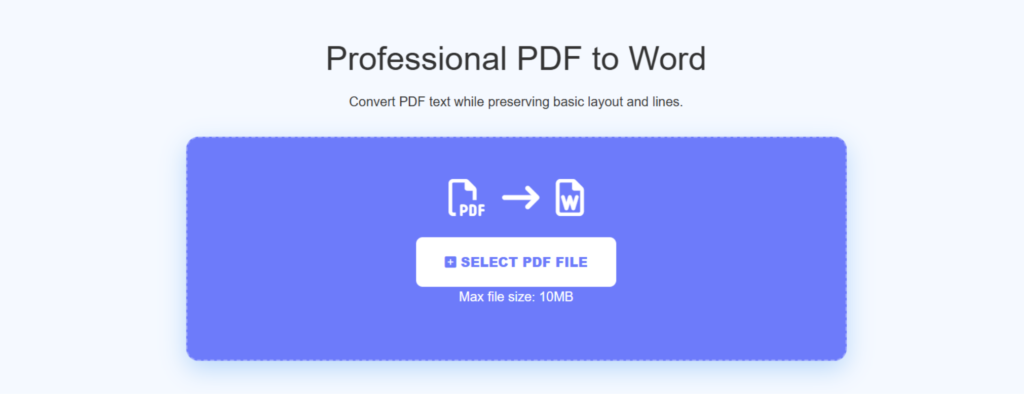
Converting your files with EveryToolfy is quick, simple, and completely hassle-free. Follow these easy steps to transform your PDF into a fully editable Word document within seconds:
- Upload Your PDF File
Click the “Select PDF File” button or simply drag and drop your document into the upload area above. - Start the PDF to Word Conversion
Once your file is uploaded, our advanced system automatically analyzes the PDF structure and converts it into an editable.docxformat while preserving the original layout and formatting. - Download Your Editable Word Document
After the conversion is complete, click the “Download” button to save your newly created Word file directly to your device.
Once downloaded, you can easily open and edit the file using Microsoft Word, Google Docs, or any other compatible word-processing software without losing formatting quality.
Understanding the Technical Side: Native vs. Scanned PDFs
When converting PDFs, it is important to understand that not all PDF files are the same. Generally, PDFs fall into two main categories:
Native (Digital) PDFs:
These files are created directly using software such as Microsoft Word, Google Docs, or Adobe InDesign. The text in these documents is digitally embedded and fully readable by computers. This allows our converter to accurately extract the text, formatting, fonts, and layout, resulting in a clean and highly accurate Word document.
Scanned (Image-Based) PDFs:
These PDFs are generated by scanning or photographing physical documents. In this case, the computer recognizes the file as an image rather than editable text. To process these files, advanced Optical Character Recognition (OCR) technology is required to detect and convert the text from the image. While our converter performs exceptionally well with native PDFs, heavily scanned, blurry, or low-quality documents may still require minor formatting adjustments after conversion.
Data Privacy and Document Security Assured
At EveryToolfy, we understand that your documents may contain sensitive personal, financial, or professional information. That’s why security and privacy are our highest priorities. Every file uploaded to our platform is protected through secure HTTPS encryption, ensuring safe and protected data transmission at all times.
To further safeguard your privacy, we follow a strict automated deletion policy. All uploaded files and converted outputs are permanently removed from our servers shortly after processing is completed. We never store, copy, share, or manually review your files under any circumstances, giving you complete confidentiality, maximum security, and total peace of mind.
Best Practices for Perfect Conversion Results
To achieve the highest accuracy with our free PDF to Word converter, keep these important tips in mind:
- Use Clear and High-Quality Documents: If your PDF contains scanned pages or image-based text, make sure the original file is sharp, clean, and easy to read. Blurry or low-resolution text may cause recognition errors during the conversion process.
- Remove Password Protection: Password-protected or encrypted PDF files can prevent the converter from accessing the content properly. Before uploading, make sure to unlock the PDF or remove any security restrictions.
- Choose Standard Fonts: Using widely supported fonts such as Arial, Times New Roman, or Calibri helps maintain accurate formatting and improves the chances of achieving an identical Word document layout.
- Keep Complex Layouts Organized: Our advanced conversion engine supports tables, multi-column pages, and rich formatting. However, PDFs with heavily overlapping elements or highly complex designs may still require small formatting adjustments in Microsoft Word after conversion.
Ans: Yes, in most cases. For standard digital PDFs, the converted Word document preserves the original formatting with high accuracy, including text alignment, fonts, tables, images, and overall layout.
Ans: EveryToolfy is completely free for regular daily use. You can convert multiple files easily. For very large files or bulk conversions, we recommend processing them one at a time for the best performance.
Ans: Absolutely! After editing your file in MS Word, you can save it directly as a PDF or use our dedicated Word-to-PDF converter for a quick and seamless conversion.
Ans: No installation is required. EveryToolfy works entirely online through your web browser, so there is no need to download software, plugins, or third-party extensions.
Our tool uses a sophisticated algorithm based on the DIME method to deliver accurate, reliable, and precise financial calculations. Also explore our Grammar Checker and Online Notepad for more useful online tools.