
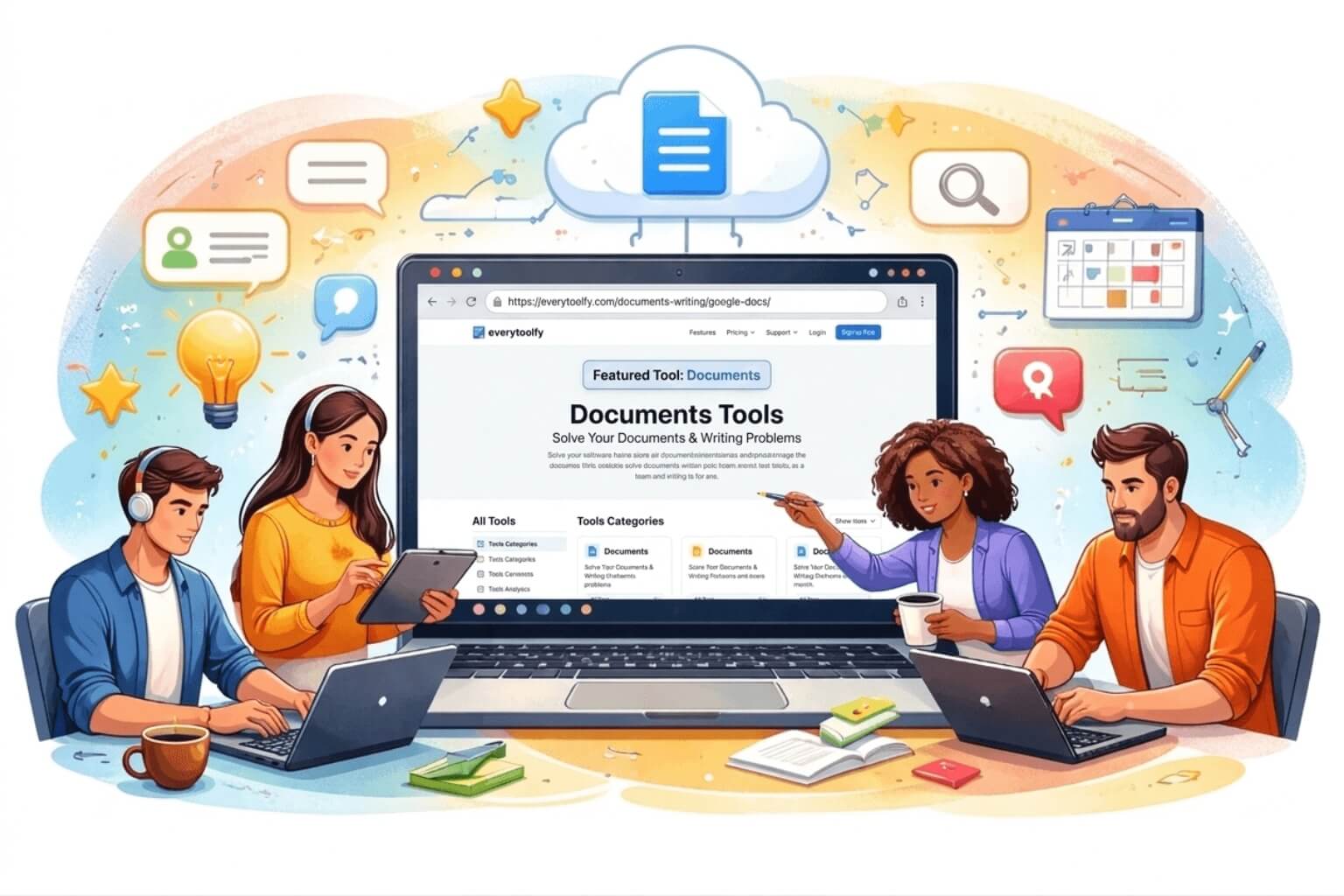
In today’s digital world, online document tools have replaced traditional word processors. Among the most powerful and widely used platforms is Google Docs. Whether you are a student, blogger, freelancer, or business owner, Google Docs makes writing, editing, formatting, and team collaboration simple and efficient.
In this comprehensive step-by-step guide, you will learn how to:
Create and format professional documents
Edit content with built-in smart tools
Collaborate with your team in real time
Share, comment, and manage permissions effectively
You will also discover how Everytoolfy.com’s smart online tools can further enhance your productivity and streamline your workflow.
Google Docs is a free, cloud-based word processing tool developed by Google. It allows users to create, edit, format, and share documents online without installing any software. Since it works entirely in your web browser, you can access your documents anytime and from any device.
Google Docs has become one of the most popular online document editors for several reasons:
Works directly in your web browser
Automatically saves your work in real time
Allows multiple users to edit the same document simultaneously
Accessible on both desktop and mobile devices
Completely free with a Google account
Unlike traditional software such as Microsoft Word, Google Docs eliminates the need for manual saving or sending files back and forth. All changes are saved instantly in the cloud, making collaboration faster, easier, and more efficient.
Getting started with Google Docs is quick and simple. Follow these easy steps to begin creating your document:
Visit the official Google Docs website.
Log in using your Google account.
Click “Blank Document” to start from scratch or choose a ready-made template to save time.
You can also open Google Docs through:
Google Drive (your cloud storage dashboard)
The app launcher menu in Gmail
The official mobile app available for iOS and Android devices
With seamless access across desktop, tablet, and smartphone, Google Docs allows you to create and manage documents anytime, anywhere.
Once you open a new document, you can start writing immediately. The interface is clean, simple, and beginner-friendly.
Click anywhere on the blank page to begin typing.
Use the toolbar at the top to format your text (font style, size, bold, headings, alignment, etc.).
Rename your document by clicking on the file name at the top-left corner.
Your work is automatically saved in real time — no need to click “Save.”
Google Docs ensures that every change is stored instantly in the cloud, so you never lose your progress.
Proper formatting makes your content look professional, improves readability, and enhances SEO performance. A well-structured document is easier for both readers and search engines to understand.
To create a clean and organized document, use the following formatting features:
Headings (H1, H2, H3) for clear structure
Bold, Italic, and Underline for emphasis
Numbered and bulleted lists for better readability
Paragraph alignment and line spacing for a neat layout
Add links, tables, and images to enrich your content
Using headings properly helps organize your content and improve search rankings.
Follow these steps:
Highlight the text you want to turn into a heading.
Click on the style dropdown menu (usually showing “Normal text”).
Select Heading 1, Heading 2, Heading 3, and so on.
Pro Tip:
Use Heading 1 (H1) for your main title.
Use Heading 2 (H2) for major sections.
Use Heading 3 (H3) for sub-sections.
Well-structured headings make your document easier to scan, more engaging to read, and more SEO-friendly for search engines.
Google Docs truly stands out when it comes to editing and refining content. Its built-in tools help you correct mistakes, enhance clarity, and produce professional-quality documents.
Google Docs offers several integrated editing tools, including:
Spell check to catch spelling errors instantly
Grammar suggestions for clearer and more accurate writing
Find and Replace to quickly update repeated words or phrases
Word Count (Go to Tools → Word Count) to track document length
These features make editing fast, simple, and efficient.
One of the most powerful features of Google Docs is its real-time collaboration capability. The Suggestion Mode and Comments feature make teamwork smooth, organized, and highly efficient.
Suggestion Mode allows you to recommend edits without permanently changing the original content.
Follow these steps:
Click the pencil icon in the upper-right corner of the document.
Select “Suggesting” mode.
Any edits you make will appear as suggestions instead of direct changes.
This feature is ideal for teams, editors, bloggers, and content writers who need approval before finalizing revisions.
Comments help maintain clear communication within the document.
To add a comment:
Highlight the text you want to comment on.
Click the comment icon in the toolbar.
Type your message and use @email to tag teammates directly.
Using comments keeps discussions organized and ensures that all feedback stays connected to the relevant part of the document.
Sharing documents in Google Docs is simple, secure, and highly efficient. It allows teams to collaborate in real time without sending files back and forth.
Follow these steps to share your file:
Click the “Share” button in the upper-right corner of the document.
Enter the email addresses of the people you want to share it with.
Choose the appropriate permission level:
Viewer – Can only view the document
Commenter – Can add comments but cannot edit
Editor – Can make full changes to the document
You can also generate a shareable link and control whether anyone with the link can view, comment, or edit the file.
Because of its flexible permission settings and real-time collaboration features, Google Docs is ideal for:
Remote teams
Freelancers and independent contractors
Businesses and organizations
Students working on group assignments
This secure document-sharing system makes collaboration faster, more organized, and more productive.
Many users don’t realize that Google Docs can also be used without an internet connection. The offline feature allows you to continue working on your documents anytime, even when you don’t have access to Wi-Fi.
Follow these simple steps:
Install the Google Docs Offline extension in your browser.
Open Google Drive settings.
Enable the Offline Mode option.
Access and edit your documents normally — even without internet access.
Once you reconnect to the internet, all your changes will automatically sync to the cloud.
Work during travel or power outages
Continue writing without interruptions
Automatic syncing once you’re back online
No risk of losing your progress
Google Docs’ offline capability ensures productivity anytime, anywhere — making it a reliable tool for students, professionals, and remote teams.
Google Docs allows you to download and export your documents in multiple file formats, making it easy to share or publish your content anywhere.
You can download your document in the following formats:
PDF (.pdf)
Microsoft Word (.docx)
Plain Text (.txt)
EPUB (for eBooks)
HTML (for web use)
Follow these simple steps:
Click on File in the top menu.
Select Download.
Choose your preferred file format.
Your file will be downloaded instantly to your device.
Before sending or uploading large documents, you can reduce file size using smart tools available on Everytoolfy.com, such as:
PDF Compressor Tool
Document Conversion Tool
Compressing files helps keep document sizes small, improves upload speed, and ensures easier sharing via email or websites.
Google Docs is more than just a word processor — it comes packed with productivity features that many users overlook. These tools can save time, improve content quality, and make your workflow more efficient.
Navigate to Tools → Voice Typing.
Speak naturally, and Google Docs will automatically type your words for you.
Ideal for drafting content quickly or for users who prefer dictation over typing.
Use the Explore feature to conduct research directly within your document.
Add references, images, and links without leaving Google Docs.
Google Docs offers a variety of templates to speed up content creation:
Resumes – Professionally designed for job applications
Business Proposals – Pre-formatted for professional presentations
Letters & Reports – Easy-to-use formats for personal or corporate use
Enhance functionality with useful add-ons:
Grammar and writing improvement tools
Citation generators for academic writing
PDF exporters for easy sharing and publishing
When creating content in Google Docs for your blog or website, following SEO best practices ensures your writing ranks higher on search engines and engages readers effectively.
Use H1 only once for the main title.
Properly structure your document with H2 and H3 headings.
Keep paragraphs short and easy to read.
Use bullet points and numbered lists to break up content.
Integrate target keywords naturally throughout the text.
After writing, check your content for:
Keyword density to ensure optimal usage without overstuffing
Readability score to confirm it’s clear and user-friendly
Meta title length for search engine display
Meta description length to improve click-through rates
All these SEO checks can be efficiently done using the SEO Tools section on Everytoolfy.com, helping you optimize content for both readers and search engines.
Google Docs is a versatile tool suitable for anyone who creates, edits, or collaborates on documents. Its flexibility and cloud-based features make it perfect for a wide range of users.
Bloggers – for drafting, editing, and formatting posts
Students & Digital Marketers – for research, assignments, and campaigns
Content Writers – for creating SEO-friendly articles and documents
Business Teams – for collaborative projects and reports
Remote Workers – to access and edit documents from anywhere
SEO Professionals – for content optimization and keyword tracking
Google Docs works seamlessly across multiple platforms, including:
iOS (iPhone & iPad)
Android smartphones and tablets
macOS computers
Windows PCs
Its cloud-based system ensures that your work is accessible, editable, and shareable anywhere, making it a perfect productivity solution for individuals and teams alike.
Even experienced users can make mistakes when using Google Docs. Avoiding these errors ensures your documents are professional, well-organized, and optimized for both readers and search engines.
Incorrect use of headings – Using multiple H1s or skipping H2/H3 can hurt readability and SEO.
Ignoring Suggestion Mode – Not using it can make collaboration confusing and lead to unapproved changes.
Sharing without proper permissions – Always check viewer, commenter, and editor access before sharing.
Neglecting SEO optimization – Failing to optimize headings, keywords, and meta details reduces search visibility.
Skipping proofreading – Publishing without reviewing content may lead to errors and lower quality.
Before finalizing your document, use Everytoolfy.com’s tools for:
Grammar and spelling checks
SEO optimization
Readability improvements
Keyword analysis
These steps ensure your content is polished, professional, and search-engine friendly.
This content is provided solely for informational and educational purposes. We are not officially affiliated, associated, authorized, endorsed, or connected with Google. The trademark “Google Docs” belongs to its respective owner.
All brands, logos, and product names mentioned herein are the property of their respective owners. The tools featured on Everytoolfy.com are independent web-based solutions designed to enhance productivity and support search engine optimization.
Before using any third-party tools or sharing sensitive information online, always consult the official documentation and privacy policies to ensure safe and proper usage.
EveryToolfy provides fast, free online tools for everyday tasks, including documents, photos, videos, SEO, calculators, security checks, and AI utilities.